Getting started
Set up your SafeVue hub
It takes about five minutes. You need your phone, your home Wi-Fi password and an email address.
Five steps
- 1
Plug it in
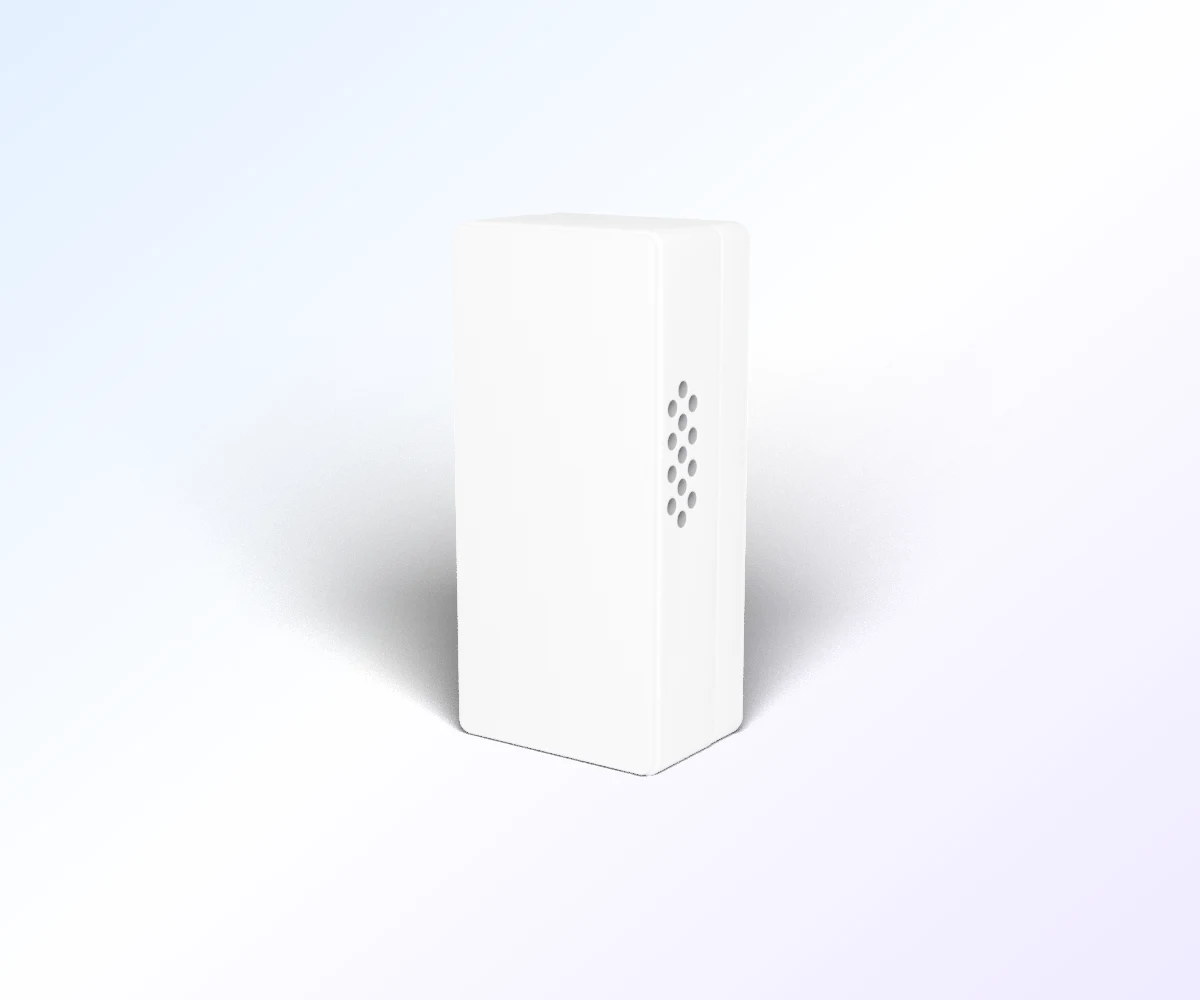
Plug the hub into a wall outlet in the room you want it to watch. Keep the front uncovered, not behind furniture or curtains.
- 2
Join the hub's Wi-Fi
On your phone, open Wi-Fi settings and join the network that starts with SafeVue-Setup. A setup page opens. If it doesn't, open your browser and go to 192.168.4.1.
- 3
Connect it to your home
Enter your email, pick your home Wi-Fi and type its password. Name the hub and its room, like “Mom's bedroom”, then tap Save and restart. SafeVue uses 2.4 GHz Wi-Fi, which almost every home router has.
- 4
Confirm by email
Put your phone back on your home Wi-Fi. We'll email you a Confirm my hub link. Tap it within 24 hours and you're signed in, with your hub on your dashboard.
- 5
Turn on alerts
On your dashboard, switch Email alerts on and tap Send me a test alert. For text messages, open Your details, add your mobile number and tick the box.
What each hub alerts you about
Change these for each hub on your dashboard, under Alert me about.
Falls
On
We alert you if someone may have fallen.
Stillness
On, after 3 hours
We alert you if nobody has moved for that long. It pauses at bedtime, 9 PM to 9 AM, and you can change those hours.
Away mode
Off until you tick it
Tick it when you leave the house and we alert you to any movement. Untick it when you're back.
If something isn't right
- The SafeVue-Setup network came back
- The Wi-Fi password was probably wrong. Join SafeVue-Setup again and re-enter it.
- No confirmation email
- Check your spam folder for an email from SafeVue. Make sure the email you typed on the setup page was right.
- The hub says Offline
- Check it is plugged in and your Wi-Fi is working. If a hub is offline for 15 minutes, we email or text you.
- New Wi-Fi, or giving the hub to someone else
- On your dashboard, open the hub and choose Set up again. Then hold the button on the hub for 5 seconds, join SafeVue-Setup and enter the Wi-Fi and the email of whoever will use it.
- “Radar isn't responding”
- Unplug the hub for 10 seconds and plug it back in. If the message stays, contact us.
Still stuck? Email admin@safevue.llc or call (361) 910-4376.